One Memory Agent, Every Tool: Connect Memanto Across Your Entire Dev Stack
Your AI coding assistants forget everything between sessions. Here's how to wire Memanto into Claude Code, Cursor, Windsurf, and Cline simultaneously, so every tool knows your preferences, past decisions, and recurring errors.

The frustration is universal: you spend 20 minutes explaining your project setup to Claude Code, then switch to Cursor to continue, and start from scratch. Every AI tool in your stack is amnesiac by default. Memanto fixes this with a single shared memory agent that persists across sessions, tools, and time.
Why Your AI Tools Keep Forgetting You
Modern AI coding assistants are stateless. Each new conversation, each new session, each tool switch, context is gone. You re-explain your stack, your conventions, why you chose PostgreSQL over MySQL, and that you always want TypeScript strict mode. Then you switch tools and do it again.
This is not a minor inconvenience. It compounds: the more specialized your setup and the longer your project runs, the more onboarding overhead you carry into every single AI interaction. Teams building with multiple tools simultaneously, Claude Code for terminal workflows, Cursor for in-editor edits, Windsurf for larger refactors, experience this ten times over.
“Memanto is a persistent memory platform that gives AI agents semantic long-term memory across conversations, sessions, and tools. One source of truth. Every tool reads from it.
What Memanto Actually Stores
Memanto organizes everything into 13 semantic memory types, not just raw text blobs. When your tools write to Memanto, each piece of context is tagged with its type so retrieval is precise and time-aware.
| Type | What It Captures | Dev Example |
|---|---|---|
fact | Objective, verifiable information | This project uses Node 22 and pnpm |
preference | Likes, dislikes, style choices | Always use arrow functions, never semicolons |
decision | Important choices and their rationale | Chose Postgres over MySQL for JSONB support |
commitment | Promises and obligations with stakes | Deliver auth refactor before the security audit |
goal | Objectives and targets | Ship v2 API with zero breaking changes by Q3 |
event | Timestamped occurrences and milestones | Released v1.2.0 on 2026-04-10, included rate limiting |
instruction | Rules and procedures to follow | Run pnpm lint before every commit |
relationship | Connections between entities, people, or services | Alice owns the payments service, escalate billing bugs to her |
context | Current situation | Mid-migration from REST to GraphQL, 60% complete |
learning | Lessons from experience | Users skip the onboarding flow, add inline hints |
observation | Patterns noticed without a conclusion | Build times spike on Friday afternoons, cause unknown |
error | Mistakes and bugs to avoid repeating | Never use require() in ESM modules, breaks bundler |
artifact | Key files and references | Main API schema lives at src/schema/index.ts |
When you ask Claude Code "what database are we using?" it does not scan your codebase, it recalls your fact memory. When you ask Cursor "why did we choose this approach?", it surfaces your decision memory. Same data, any tool.
Step 1: Install Memanto
Memanto requires Python 3.10+. Install it with pip:
- pip:
pip install memanto - uv (recommended for speed):
uv tool install memanto
Verify the install ran cleanly:
memanto --version
Step 2: Get Your API Key and Configure
Memanto runs on top of Moorcheh, its semantic search engine. You will need a Moorcheh API key to continue.
- Create a free account at moorcheh.ai
- Open the Moorcheh Console and navigate to API Keys
- Generate a new key and copy it immediately, it is only shown once
- Run
memantoin your terminal and paste the key when prompted
Alternatively, set it as an environment variable: export MOORCHEH_API_KEY=your_key_here. The configuration is saved to ~/.memanto/.env so you only need to do this once.
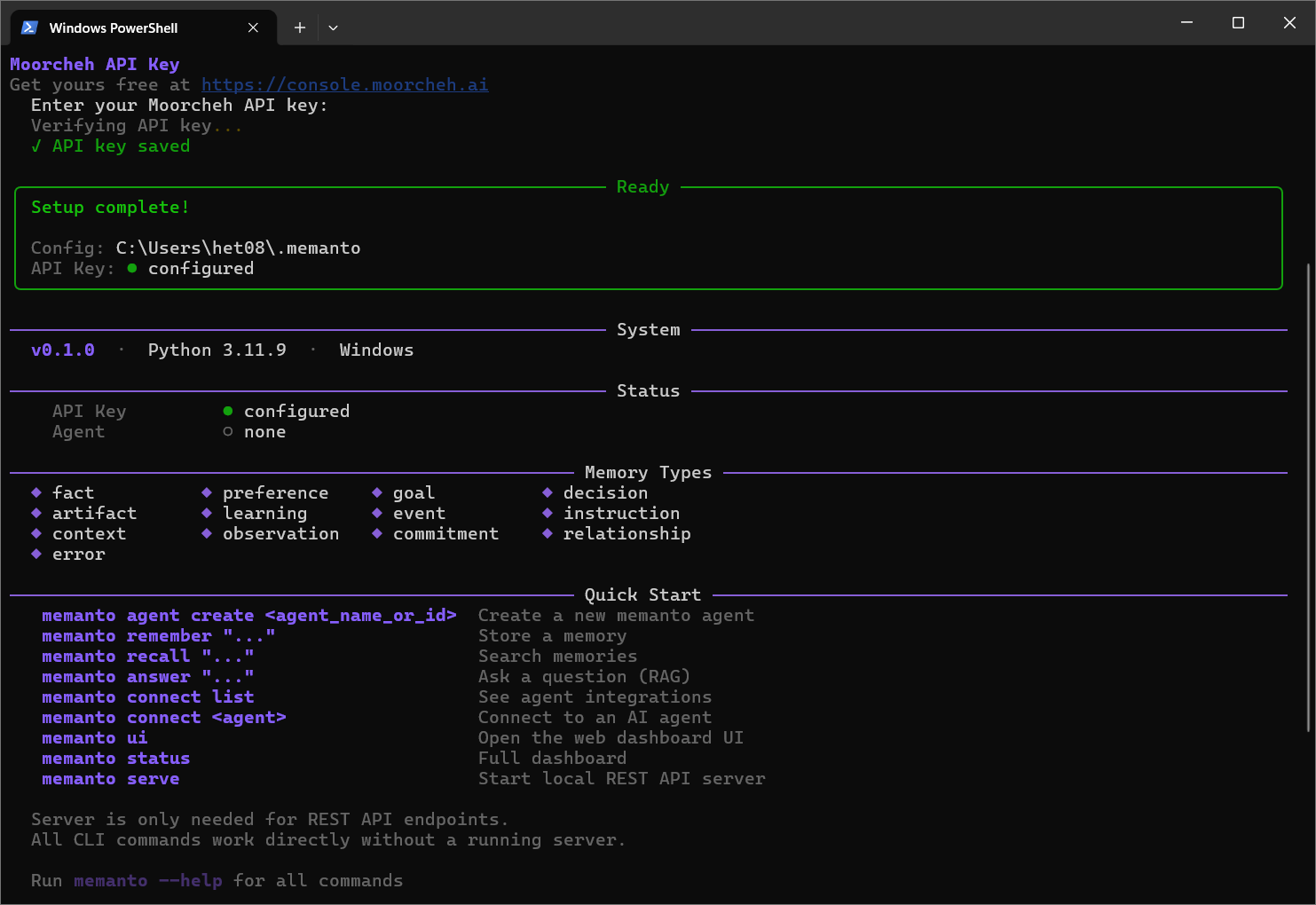
Confirm everything is wired up:
memanto status, should report API key configured
Step 3: Create Your Dev Agent
In Memanto, an agent is a persistent identity with its own isolated memory namespace. You will create one agent to represent your development identity, all your connected tools will read from and write to it.
memanto agent create dev-assistant
This creates the agent and automatically activates a session for it. A session is a 6-hour active window during which your tools can read and write memories. Sessions expire but memories persist indefinitely, your history is never lost.
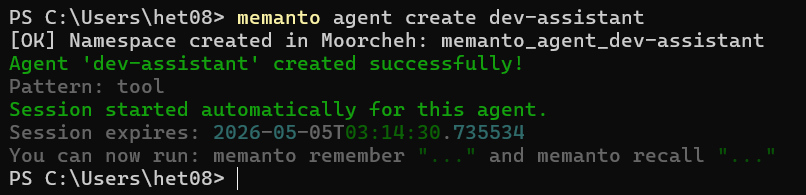
You can name the agent anything, dev-assistant, my-stack, project-memory. The name is just an identifier for the namespace. For teams, consider per-developer agents (alice-dev) or per-project agents (payments-service).
Step 4: Connect All Your Tools at Once
This is where the multi-tool magic happens. Instead of configuring each tool individually, Memanto provides an interactive setup that connects all of them in a single command:
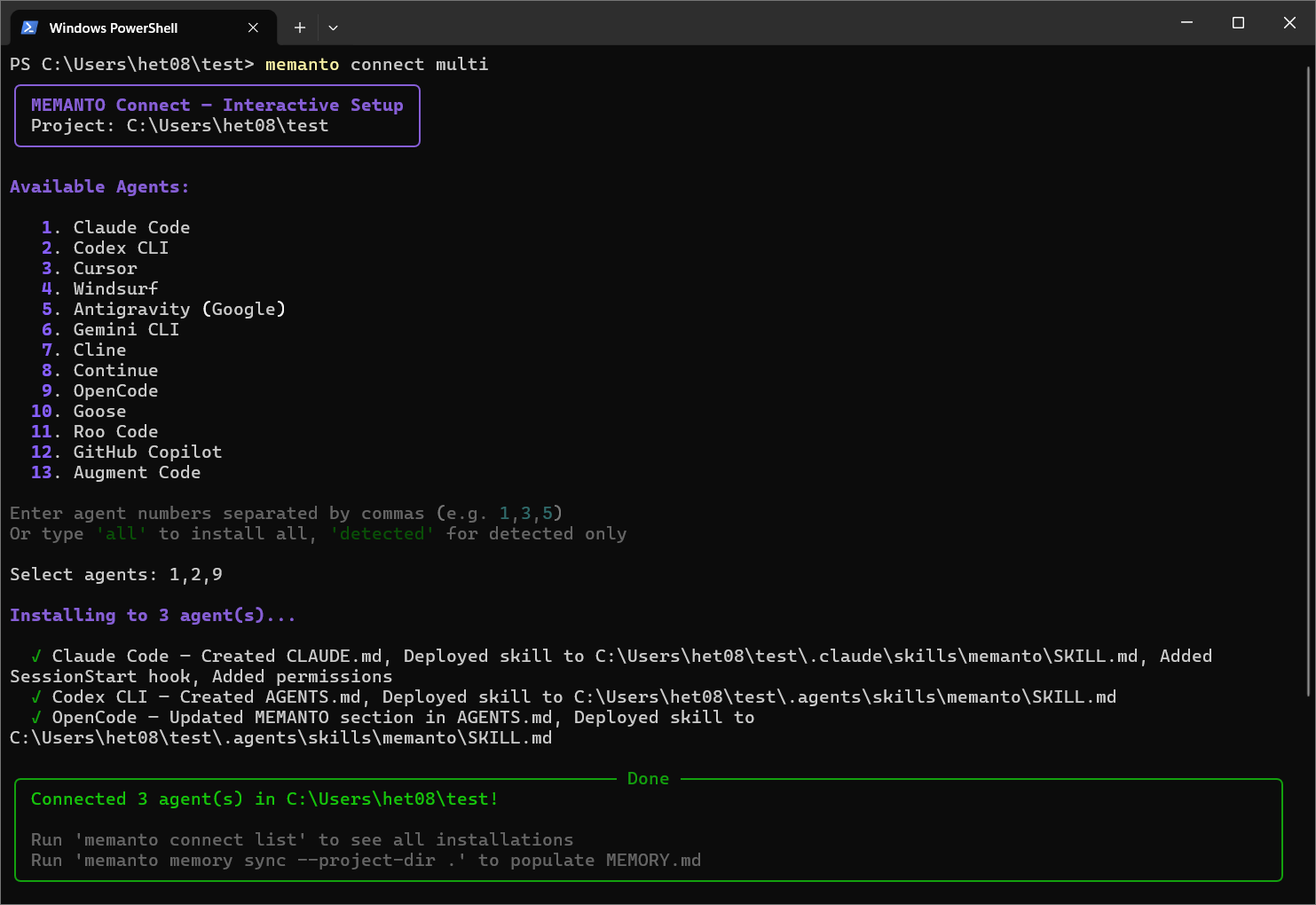
memanto connect multi
An interactive checklist appears. Enter the agent number appeared in the list separated by commas, then press Enter to confirm. Memanto writes the memory configuration to each tool's settings automatically.
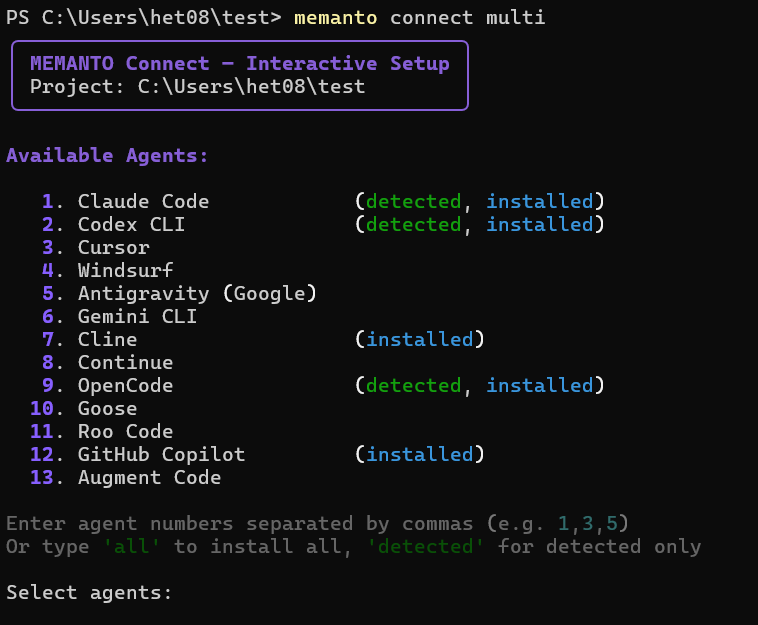
Memanto currently supports 15 tools across IDEs, IDE extensions, and CLIs:
| Tool | Type |
|---|---|
| Claude Code | CLI |
| Grok Build | CLI |
| Cursor | IDE |
| Cline | IDE Extension |
| Windsurf | IDE |
| Continue | IDE Extension |
| Codex | CLI |
| Pi | CLI |
| Gemini CLI | CLI |
| GitHub Copilot | IDE Extension |
| OpenCode | CLI |
| Goose | CLI |
| Roo | IDE Extension |
| Antigravity | IDE |
| Augment | IDE Extension |
If you prefer to connect tools one at a time, you can also run individual commands: memanto connect claude-code, memanto connect cursor, or memanto connect windsurf. Add --global to make the connection available system-wide rather than just in the current project.
Step 5: Seed Your Memory
Now that your tools are connected, seed Memanto with context that every tool should know. Think of this as your "onboarding doc" that you never have to repeat again.
memanto remember "This project uses Node 22, pnpm, TypeScript strict mode, and Postgres 16" --type factmemanto remember "Always prefer functional components and React hooks, never class components" --type preferencememanto remember "We chose tRPC over REST because the frontend and backend share the same repo and type safety is critical" --type decisionmemanto remember "Never use require(), this is a pure ESM project, it will silently break the bundler" --type errormemanto remember "Run pnpm lint && pnpm typecheck before every commit" --type instruction
You can also store context interactively through any connected tool, just ask it to remember something and it will write the memory to Memanto automatically.
What Cross-Tool Memory Looks Like in Practice
Here is a real developer day showing how memories flow across tools.
Morning: Claude Code session
You open a Claude Code terminal session on the payments feature. During the session, Claude Code hits a tricky bug, a tRPC mutation silently fails because the Zod schema rejects a null value that the frontend sends. You ask Claude Code to remember it:
memanto remember "tRPC mutations reject null from optional frontend fields, use .nullable() in Zod schemas, not just .optional()" --type error
Afternoon: Switch to Cursor for a refactor
You open Cursor to refactor the user auth module, a completely different file in a completely different context. Before writing a single line, Cursor already knows your stack, your conventions, and the Zod gotcha from this morning. It does not ask. The error memory surfaces automatically when you start touching schema definitions.
Evening: Windsurf picks up the thread
A teammate passes you a larger refactor task. You open Windsurf. It reads the same memory namespace, no onboarding, no re-explanation. Your decision memories tell it why the architecture is the way it is. Your preference memories tell it how you like code written. It builds on your actual history, not a blank slate.
“Each tool operates independently, but they all read from the same memory. That's the shift, your context is no longer trapped inside a single chat window.
Querying Memory Directly
You are not limited to what your tools surface automatically. The CLI gives you direct access:
memanto recall "what database are we using?", semantic search across all memoriesmemanto answer "why did we choose tRPC?", AI-synthesized answer grounded in your stored decisionsmemanto daily-summary, a full digest of what was stored today and any detected conflictsmemanto conflicts, surface contradictions (e.g., two preferences that disagree)
Recall is semantic, not keyword-based. Asking "what's our database?" and "which DB engine are we on?" will surface the same fact memory, Memanto understands intent, not just literal strings.
Managing Sessions Across a Long Day
Sessions are 6-hour active windows. If you work across a full day, you may need to extend or restart a session. Memories are never tied to a session, they persist permanently, but active sessions enable your tools to write new memories in real time.
memanto session info, check how long your current session has leftmemanto session extend, add more time to an active sessionmemanto agent activate dev-assistant, start a fresh session if the previous one expiredmemanto agent deactivate dev-assistant, cleanly close a session when you're done
A practical habit: activate a session at the start of your workday and deactivate it when you close your laptop. Everything that happened in between, across every tool, is captured.
Local vs. Global Connections
When you run memanto connect, you control the scope of the connection.
| Scope | Command | Config Location | Best For |
|---|---|---|---|
| Local (default) | memanto connect claude-code | .claude/memanto in project root | Project-specific memory, isolated contexts |
| Global | memanto connect claude-code --global | System-wide config | Personal preferences that apply everywhere |
A common pattern: use global scope for personal preferences (how you like code formatted, your communication style) and local scope for project-specific context (architecture decisions, error logs, tech stack facts). Both layers are accessible simultaneously.
Keeping Memory Healthy
Memory quality degrades if it goes stale or contradicts itself. A few habits keep it clean:
- Run `memanto daily-summary` at end of day, see what was stored and catch anything inaccurate before it embeds
- Run `memanto conflicts` weekly, resolve contradictions (e.g., two
preferencememories that disagree on style) - Use typed memories, always pass
--typeso retrieval is precise. An untyped memory is harder to surface when it matters - Be specific, "We use Postgres" is less useful than "We use Postgres 16 with the pg_vector extension for embedding search"
- Export regularly,
memanto memory exportgives you a timestamped backup. Treat it like a database dump.
View All Connected Tools
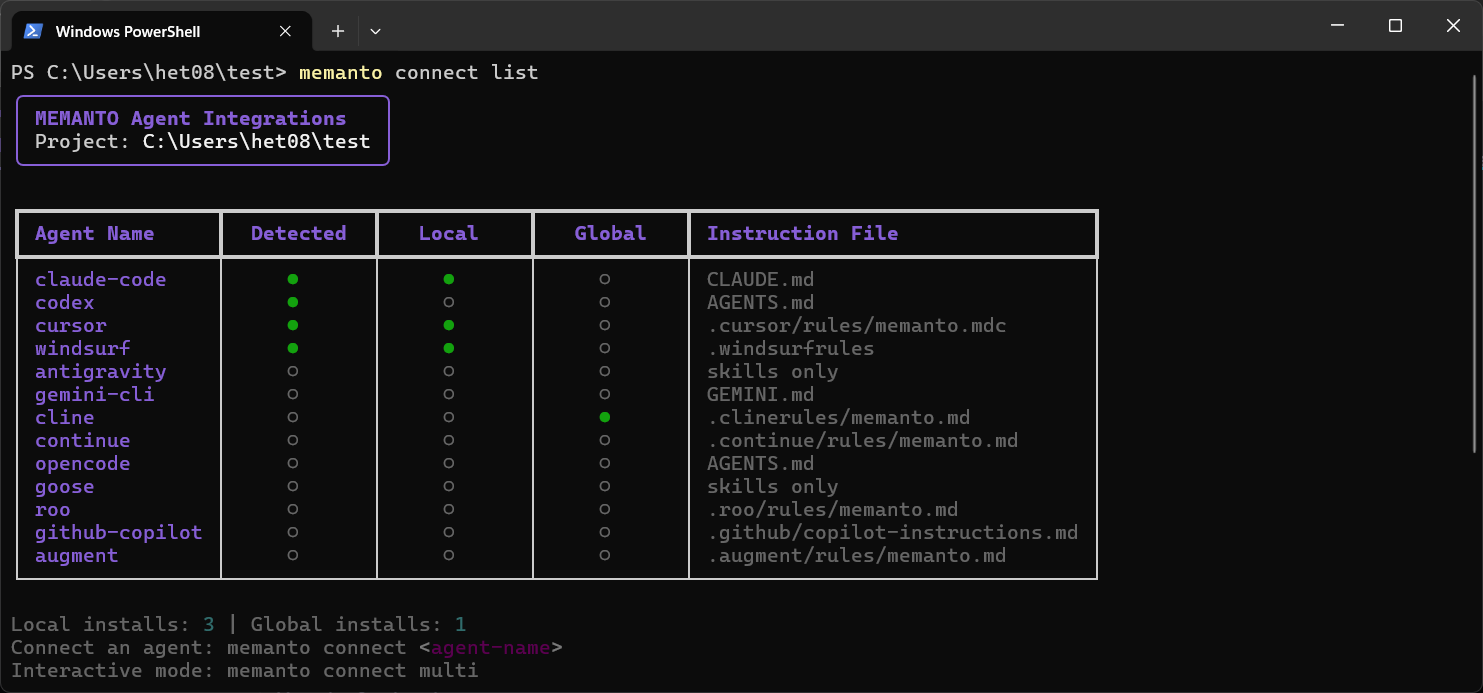
At any point you can audit what is connected:
memanto connect list, shows all active tool connections and their scopememanto connect remove cursor, disconnect a specific tool
Why This Changes How You Work
The compounding benefit of persistent cross-tool memory is subtle at first and then impossible to ignore. After a week, your AI tools stop feeling like generic assistants and start feeling like colleagues who have been on the project the whole time.
Errors you hit once never need explaining again. Decisions you made two months ago are surfaced with their rationale intact. Preferences you set once apply everywhere. The cognitive overhead of re-establishing context, which burns minutes in every session and hours across a week, simply disappears.
You can check what Memanto currently knows by running memanto recall "what do you know about this project?" from any terminal. The answer is the same regardless of which tool you ask through.
“Persistent memory is not a quality-of-life improvement. It is the difference between AI tools that assist and AI tools that actually understand your work.
Quick Reference
| Task | Command |
|---|---|
| Install | pip install memanto |
| Configure API key | memanto (interactive) or export MOORCHEH_API_KEY=... |
| Create agent | memanto agent create dev-assistant |
| Connect all tools (interactive) | memanto connect multi |
| Connect one tool | memanto connect claude-code |
| Connect globally | memanto connect claude-code --global |
| Store a memory | memanto remember "..." --type fact |
| Search memory | memanto recall "your question" |
| AI-synthesized answer | memanto answer "your question" |
| Check session | memanto session info |
| Daily digest | memanto daily-summary |
| View connections | memanto connect list |
| Export backup | memanto memory export |
Further Reading
- Memanto Documentation, full CLI reference and API docs
- Memory Types Reference, all 13 semantic types explained
- Daily Workflows Guide, team patterns and automation examples
- Memanto on GitHub, source and evaluation benchmarks


